


I use this more than I expected - whether it’s a birthday message, family overseas or something I think of late at night that doesn’t need to wake someone up. iPhone’s Send Later feature quietly fixes that.
I mostly use Send Later for:
- Family overseas → send messages in their time zone instead of waking them up
- Birthday messages → write them when I remember, not when I inevitably forget
- Late-night texts → get the thought out without buzzing someone’s phone while they’re asleep
- Work messages → schedule them for business hours instead of sending them at 11pm
Schedule a message
1) Open the messages app

2) Select the conversation you want to schedule the message in
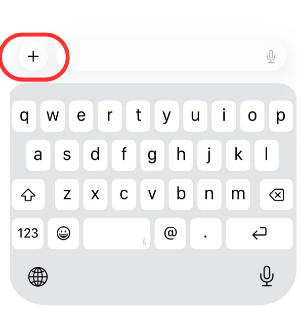
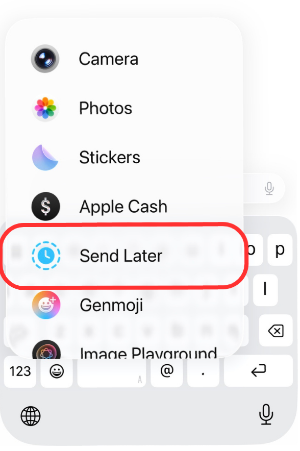
3) Tap the + icon on the left side and tap "Send Later"
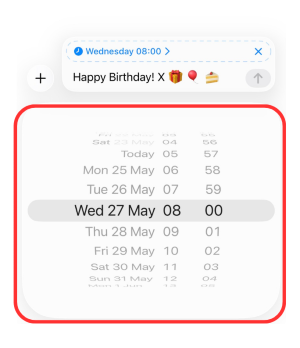
4) Type the message you'd like to send. Click the blue text above your message to edit the date and time. Click the send arrow to schedule the message.
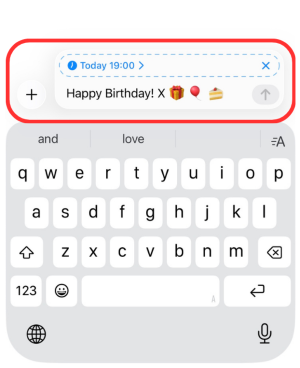
5) The message will now appear with a dotted bubble around it. The message will now automatically send at the schedule time. Scheduled messages are stored on Apple servers until they are sent. Your phone doesn't have to be online.
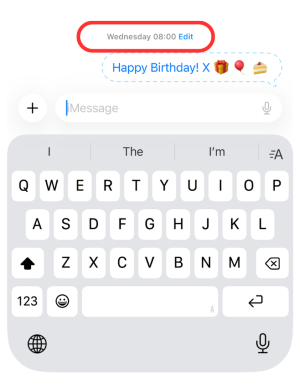
If you click "Edit" - you have will have some options to edit the message, edit the date/time its scheduled to be sent or send it immediately.